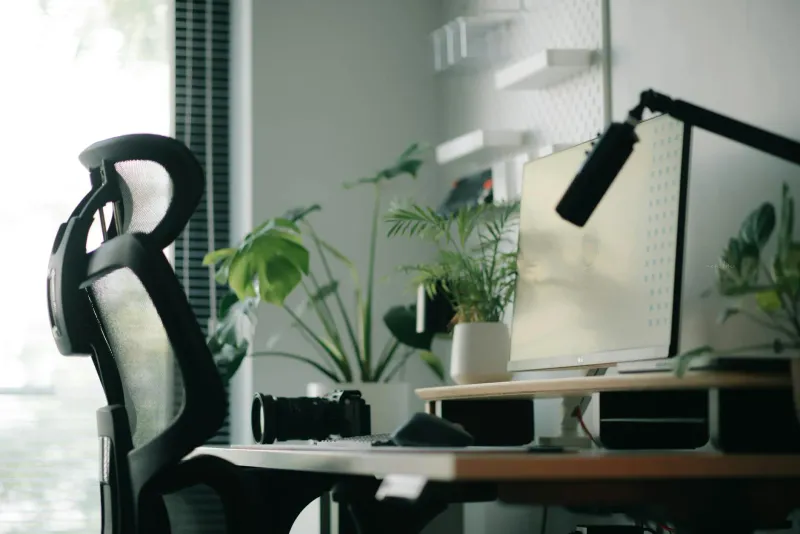
Most remote-work posture problems come from small mismatches repeated for hours: a laptop screen that sits too low, a chair that does not support the lower back, a desk that pushes the shoulders up, a mouse too far away, and breaks that never happen. An ergonomic home office is not about sitting perfectly. It is about making the good position easy and changing position often.
I have worked from home since 2019 as a software engineer. In the first year, I did most of my work from a dining table with a laptop directly on the surface. My neck started complaining first, then my lower back, then my right wrist. The equipment was not the only issue, but the setup was asking my body to compensate for bad geometry all day.
This guide is the practical version of what I wish I had followed earlier. It combines my own remote-work setup experience, advice I have picked up from my physiotherapist Pep at Fisiosthetic in Rubi, and public ergonomics guidance from sources such as INSST, Cornell Ergonomics and the Institute of Biomechanics of Valencia.
I am not a physiotherapist or a doctor. If you have sharp pain, numbness, pain travelling down an arm or leg, or symptoms that do not improve after sensible changes, get a professional assessment. Ergonomic setup advice is useful, but it is not a diagnosis.
Quick test: does your posture need work?
Most home office setups fail two or three of these checks. Sit exactly as you normally work, without correcting yourself first, and look at the real position.
- Feet: are both feet fully supported by the floor or a footrest?
- Back: does your lower back touch the backrest, or are you floating forward?
- Elbows: are your forearms roughly parallel to the floor while typing?
- Screen: is the top third of the screen around eye level?
- Shoulders: are they relaxed, or lifted towards your ears?
If two or more answers are “no”, the setup is probably creating strain before the work itself even starts. The most common failure is screen height. A low laptop makes the neck flex for hours, and the body is very good at tolerating that until it suddenly is not.
A seven-day reset before buying anything
Before ordering a new chair, desk or monitor, spend one week testing the setup you already have. This makes the real limitation clearer. Otherwise, it is easy to buy a chair when the real problem is the laptop screen, or buy a standing desk when the real problem is not moving.
| Day | Adjustment | What to watch |
|---|---|---|
| 1 | Take a side photo of your normal posture. | Forward head, raised shoulders, rounded back, screen position. |
| 2 | Adjust chair height and foot support. | Feet supported, thighs relaxed, no pressure behind knees. |
| 3 | Raise laptop or monitor to eye level. | Neck tension in the afternoon. |
| 4 | Bring keyboard and mouse closer. | Shoulder tension and wrist angle. |
| 5 | Use a 50-minute work / 10-minute movement rhythm. | Lower-back discomfort by midday and end of day. |
| 6 | Check lighting and glare. | Squinting, leaning forward, afternoon headaches. |
| 7 | Repeat the side photo. | What improved and what still needs equipment. |
The first photo can be uncomfortable. When my wife first took one of me working from the dining table, the problem was obvious: chin forward, shoulders raised, laptop low. I felt “fine” while working because the position had become normal. The photo made it visible.
At the end of the week, you want three answers:
- Which change reduced discomfort?
- Which limitation cannot be fixed with current furniture?
- When does pain appear: first thing, after lunch, end of day, or during specific tasks?
That is the difference between guessing and improving the workstation with some logic.
Correct desk posture, body by body
“Sit up straight” is weak advice because it depends on muscle effort. A good setup should support the posture so you do not have to think about it all day.
Feet and legs
Feet should be fully supported. If your chair is high enough for the desk but your feet hang, use a footrest. Knees usually sit around 90 to 110 degrees, with thighs parallel to the floor or sloping slightly down.
If you are not sure whether a footrest helps, test it before buying one. A box, a stack of books or a ream of paper can tell you whether raising the feet reduces lower-back pressure. I used a temporary box under the desk before buying a proper footrest. It looked improvised, but the feedback was immediate.
Avoid crossing the legs for long periods. Doing it occasionally is normal. Holding it for 20 or 30 minutes changes hip position, reduces circulation and often pulls the pelvis out of alignment.
Lower back and spine
Your lower back needs support. If the lumbar curve is unsupported, the muscles do the work instead. They can manage for a while, then they fatigue and the posture collapses.
The backrest should support the natural curve of the lower spine without forcing you into an exaggerated arch. If your chair has adjustable lumbar support, move it until you feel gentle support in the lower back. If you cannot get support at all, the chair may be the limiting factor.
Before replacing it, make sure the current chair is actually adjusted correctly. The office chair adjustment guide walks through the sequence. If the chair really cannot fit your body, then compare options in best ergonomic office chairs.
Arms and wrists
When typing, elbows should stay close to the body, with forearms roughly parallel to the floor. If armrests are too high, the shoulders lift. If they are too low, they do nothing. If they block you from getting close to the desk, they may be doing more harm than good.
Wrists should stay neutral. A keyboard tilted up at the back often bends the wrists into extension, especially if the desk is already high. If you use a thick keyboard or one with a wrist rest, remember that it changes the effective desk height by a few centimetres.
I learned this the boring way: lowering my keyboard position slightly and keeping the wrist angle flatter reduced wrist irritation more than any stretch I tried. If wrist discomfort is your main problem, also read carpal tunnel prevention for remote workers and compare ergonomic keyboards or vertical ergonomic mice.
Neck and head
The screen should be close to eye level. A useful rule is to place the top third of the display around eye height, at about an arm’s length from you. If you use a laptop directly on the desk, the neck has to look down. No chair can fully compensate for that.
For laptop work, use a stand plus external keyboard and mouse. For monitor work, use the built-in height adjustment if it has one. If it does not go high enough, a riser or monitor arm is usually the cleanest fix. See best monitors for working from home and best monitor arms if you need product guidance.
Adjust the setup in the right order
The order matters because every component affects the next one.
- Chair first. Set seat height so feet are supported and thighs are comfortable. Adjust lumbar support so the lower back touches the backrest.
- Desk second. The work surface should sit near elbow height with relaxed shoulders.
- Screen third. Raise it to eye level and keep it about an arm’s length away.
- Keyboard and mouse last. Bring both close enough that elbows stay near the body and wrists stay neutral.
If your desk is fixed at 72 to 75 cm, adjust the chair to match your elbows to the desk, then use a footrest if your feet no longer reach the floor. If the desk is too low for you, furniture risers can help. If you want exact measurements by height, use the correct desk and chair height guide or the ergonomic calculator.
What changes if you share the desk?
Shared desks create a hidden problem: the setup silently adapts to one person and punishes the other. If two people use the same workstation and differ in height, save or mark two positions:
- Chair height for each person.
- Desk height if the desk is adjustable.
- Monitor arm height or riser position.
- Footrest angle.
- Keyboard and mouse placement.
If the desk is fixed, the shorter person usually needs the footrest more. The taller person may need the monitor higher and the chair set differently. Do not assume a “neutral” middle point is good for both. It often means both people are slightly uncomfortable.
This matters in couples and shared flats, but also in family homes where one room changes from work to study space. A two-minute reset before each session prevents weeks of low-level strain.
What to buy based on the symptom
Buying by symptom is more reliable than buying by category. The product that helps depends on where the setup fails.
| Symptom | First checks | Likely useful upgrade |
|---|---|---|
| Lower-back pain | Lumbar support, foot support, sitting duration | Better chair, lumbar adjustment, footrest |
| Neck tension | Screen height, laptop posture, monitor distance | Laptop stand, monitor arm, external monitor |
| Shoulder tightness | Desk height, keyboard reach, mouse distance | Desk height correction, closer keyboard, armrest adjustment |
| Wrist discomfort | Keyboard angle, mouse shape, desk height | Flatter keyboard position, vertical mouse, ergonomic keyboard |
| Eye strain | Glare, brightness, screen distance, room light | Task light, monitor height, display scaling |
Do not skip the checks column. A product can help only if it matches the failure. If your neck hurts because the laptop is low, a more expensive chair may make the day more comfortable but it will not remove the neck angle.
Movement matters more than perfect posture
The best posture is the next posture. A perfect-looking position becomes uncomfortable if you hold it for hours.
Use a simple rhythm: after 45 to 60 minutes of focused work, stand up and move for a few minutes. Walk around the room, refill water, stretch the shoulders, look out the window, or change task. The exact ritual matters less than the fact that you break the static position.
Standing desks help only if they make movement easier. Standing still all morning is not the goal. If you have one, use short standing blocks. If you do not, you can still get most of the benefit by leaving the chair regularly.
On days when I ignore movement breaks, my lower back notices by late afternoon. The setup has improved over the years, but the body still dislikes being parked in one position.
Micro-movements count
People often imagine movement breaks as a formal routine. They do not have to be. Micro-movements count:
- Stand for the first two minutes of a call.
- Walk while listening to a meeting where you do not need the screen.
- Put water slightly away from the desk so you stand to reach it.
- Stretch wrists after a long writing block.
- Change from deep work to a short household reset between tasks.
This is especially useful if your calendar is fragmented. A perfect 10-minute break after every 50 minutes may not happen. Three small resets inside a messy morning are still better than staying frozen until lunch.
Common home office mistakes
Working from the sofa “just for a bit”
The sofa is fine for a short message. It is poor for real work. It rounds the lower back, drops the screen, bends the neck and leaves the wrists unsupported. In small homes, a folding wall desk and a basic chair usually beat the sofa.
Treating the chair as the whole solution
A better chair helps, but it cannot fix a screen that is too low or a desk that forces the shoulders up. Ergonomics works as a system. Chair, desk, monitor, keyboard, mouse, lighting and movement all interact.
Keeping the screen too close or too far away
Too close and your eyes work harder. Too far and you lean forward to read. Start with an arm’s length. If text feels small from that distance, increase scaling or font size rather than moving your head toward the screen.
Letting a temporary chair become permanent
Dining chairs are not designed for full workdays. A temporary setup that lasts a week is one thing. A temporary setup that lasts two years becomes the cause of the problem.
Ignoring early warning signs
Tingling fingers, persistent neck tightness, morning stiffness or headaches from the base of the skull are signals. Adjust the setup early. If symptoms persist, stop treating it as a furniture problem and speak to a professional.
Copying a photo instead of a fit
Desk setup photos are useful for ideas, but poor templates for ergonomics. You cannot see the user’s height, chair settings, monitor distance, keyboard angle or pain history from a photo. A setup can look clean and still be wrong for your body.
Use photos for layout inspiration. Use measurements and body feedback for ergonomic decisions.
Buying a standing desk to avoid sitting discipline
A standing desk can make movement easier, but it does not create the habit for you. I see this mistake often: someone buys a standing desk, stands too long for a week, gets tired, then uses it as a fixed sitting desk forever.
If you buy one, save two or three realistic positions and use them in short blocks. The desk should reduce friction, not become a moral test.
Setup examples for common home offices
Ergonomic advice becomes easier when you apply it to real rooms. These are the setups I see most often.
Laptop on dining table
This is the classic first remote-work setup. It can work for occasional tasks, but it is poor for full days because the screen and keyboard are attached. If the laptop stays low enough for typing, the neck bends. If you raise it for the neck, the keyboard becomes unusable.
Minimum fix:
- Laptop stand or a stable stack of books.
- External keyboard and mouse.
- Chair height adjusted to the table.
- Footrest if raising the chair leaves feet unsupported.
This is the cheapest serious improvement. It does not require a new desk, and it often removes the biggest neck problem immediately.
Fixed desk in a small room
This is my own closest category: a dedicated desk that does not adjust in height. The desk can work well if you treat the chair and accessories as the adjustment layer.
Check:
- Can the chair roll back without hitting the wall?
- Is the desk deep enough for the monitor to sit 50 to 70 cm away?
- Does the keyboard sit at elbow height?
- Do cables stop you from moving the monitor or cleaning?
The common error is buying a larger desk than the room can support. A smaller desk with good monitor placement often beats a large desk that forces awkward movement around the room.
Shared desk or family workstation
Shared setups need resets. If one person is 160 cm and another is 185 cm, one setting cannot fit both.
Use visible markers:
- A chair-height mark for each person.
- Two monitor arm positions.
- Footrest location.
- Separate keyboard and mouse placement if one person reaches further.
This sounds fussy, but it prevents the common “I just adapt” pattern. Adapting usually means one person works with raised shoulders, dangling feet or a low screen for months.
Sofa or bed work
Sofa and bed work should stay occasional. They are poor workstations because they remove stable back support and force the screen down. If you must work away from the desk for a short session, keep it short and choose tasks that do not require heavy typing.
For real work, create even a tiny workstation. A folding wall desk and basic chair are usually healthier than a beautiful sofa setup with a laptop tray.
Ergonomic myths worth dropping
”Good posture means sitting straight all day”
No. Sitting rigidly upright for hours is still static load. A slightly reclined posture with good back support is often more comfortable than forcing yourself into a military-straight position. The goal is supported variation.
”If I buy a good chair, I am done”
A chair is the biggest comfort purchase, but it does not set screen height, keyboard distance, lighting or breaks. I have seen expensive chairs used badly with laptops placed too low. The result is still neck pain.
”Standing is always healthier than sitting”
Standing helps when it adds variation. Standing still all day can create foot, knee and lower-back fatigue. The healthy pattern is sitting, standing, walking and changing tasks.
”Pain means I need a more expensive product”
Sometimes. Not always. Pain can mean the product is wrong, but it can also mean the setup is misadjusted. A footrest, monitor riser, keyboard position change or movement timer may solve a problem that a premium purchase would only hide.
”Ergonomics has to look clinical”
No. A warm, personal room can still be ergonomic. The important parts are geometry and behaviour: body support, screen height, reach distance, lighting and movement. Plants, shelves and colour do not hurt if they do not compromise those basics.
Quick desk stretches that fit between meetings
You do not need gym clothes or a long routine. These are small resets for a remote workday.
Neck reset, 30 seconds
Tilt the head gently toward one shoulder and hold for about 10 seconds. Switch sides. Then rotate slowly left and right. No bouncing and no forcing the stretch.
Shoulder drop, 20 seconds
Raise both shoulders toward the ears, hold for a few seconds, then let them drop. Repeat several times. It is simple, but it reminds the shoulders to stop living near your ears.
Lower-back extension, 40 seconds
Stand up, place your hands on the lower back and gently arch backwards. Hold briefly, return to neutral, and repeat a few times. This counters the flexed sitting position.
Wrist stretch, 20 seconds
Extend one arm forward. With the other hand, gently pull the fingers down for a few seconds, then up. Switch hands. Keep it gentle, especially if you already have symptoms.
Leg reset, 30 seconds
Stand next to the desk for balance, bring one heel toward the glute, hold briefly, then switch. Long sitting shortens the front of the hips and thighs, so this helps more than it looks.
A two-minute reset between calls
When there is no time for a full routine, use this:
- Stand up and take three slow breaths.
- Roll shoulders back five times.
- Look at a distant point for 20 seconds.
- Gently arch the lower back with hands on hips.
- Sit down again and check that the keyboard is close.
It is not impressive. That is why it works. You can do it in normal clothes, in a small room, without turning the workday into a workout.
When to see a professional
Setup changes and stretches are for prevention and mild mechanical discomfort. Get medical or physiotherapy help if you notice:
- Pain that does not improve after two or three weeks of sensible changes.
- Tingling or numbness in hands, fingers, legs or feet.
- Pain travelling from the neck into the arm, or from the lower back into the leg.
- Frequent headaches that start at the base of the skull.
- Loss of strength or coordination.
I have made the mistake of waiting too long. The lesson from my own physiotherapy visits is boring but useful: early intervention is usually simpler than trying to fix a problem after months of compensation.
The changes with the biggest impact
If I had to reduce years of remote-work setup mistakes to a short list, it would be this:
- Raise the screen to eye level.
- Use a chair that actually supports the lower back.
- Keep keyboard and mouse close enough for relaxed shoulders.
- Support the feet.
- Move every 45 to 60 minutes.
You do not need a perfect or expensive home office to work comfortably. You need a setup that fits your body, enough movement to avoid staying locked in one position, and the habit of taking small warning signs seriously.
For the full buying order, read the complete home office guide. If pain is already the main issue, start with back pain when working from home or neck pain from computer work.
Monthly ergonomic audit
Run this once a month, and again whenever you change chair, desk, keyboard, monitor or shoes:
- Chair height still lets the feet rest fully.
- Lumbar support still meets the lower back.
- Desk or keyboard height still matches relaxed elbows.
- Main monitor is centred and near eye level.
- Mouse is close enough that the shoulder does not reach forward.
- Cables are not stopping you from moving equipment.
- Lighting still works at the time of day you usually feel tired.
- Breaks are happening in practice, not just in theory.
The audit takes less than five minutes. It also catches gradual drift. Chairs sink, monitors move, keyboards slide forward, and habits quietly disappear during busy weeks. Ergonomics is not one setup day. It is maintenance.