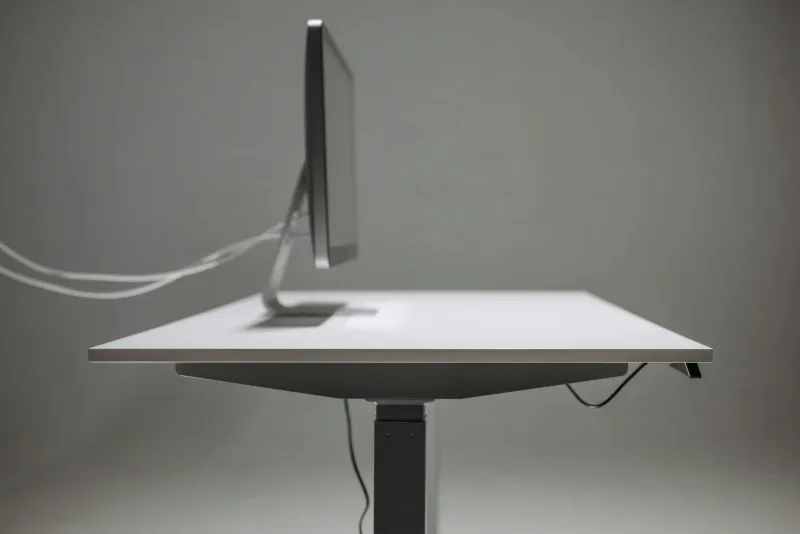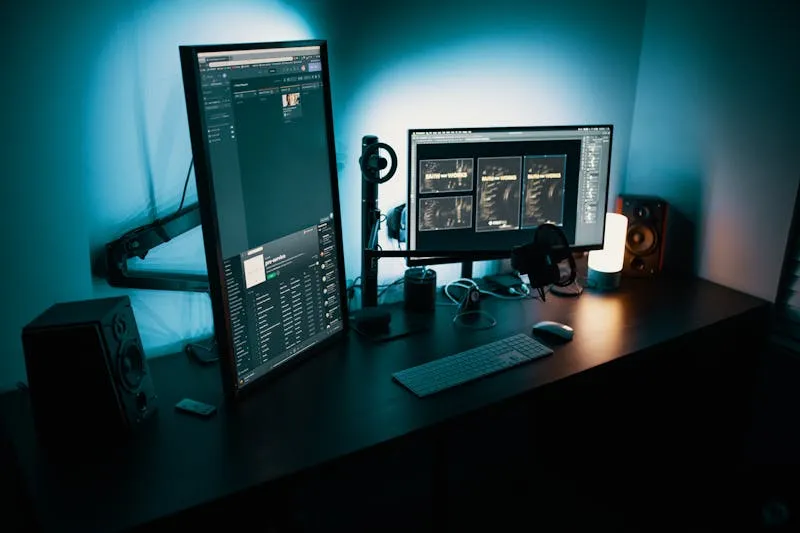
The monitor was the home-office upgrade I underestimated most. I expected a better screen. What I actually got was a better neck position, fewer cables and a desk that felt easier to use every morning.
If you work on a laptop for more than a few hours a day, a monitor is not a luxury. It lets you bring the screen to eye level and stop folding your neck toward a 14-inch panel. That posture change is why I usually recommend a monitor before many flashier accessories.

BenQ PD2705U
A strong 27-inch 4K USB-C monitor for serious home working: sharp text, one-cable laptop setup, adjustable stand and integrated KVM.
Checked: 05/26/2026
What size monitor should you buy?
For most remote workers, 27 inches is the sweet spot. It is large enough for two windows, sharp enough with 4K scaling, and still practical on a normal desk. A 24-inch Full HD monitor is the minimum I would consider for a budget setup. Ultrawide monitors are useful if you live inside spreadsheets, timelines or code plus preview windows, but they need a wider desk and more distance.
The ergonomic rule is simple: the top third of the screen should sit around eye level, and the screen should be roughly an arm’s length away. If the stand cannot adjust high enough, use a monitor arm or a stable riser.
Do not choose size in isolation. A 34-inch ultrawide can be worse than a 27-inch monitor if the desk is shallow. A 24-inch screen can be the right choice if the room is small and the main goal is to stop working from a laptop screen. The best monitor is the one that gives you readable text at a comfortable distance without forcing neck movement.
How I evaluate work monitors
For remote work, I care less about gaming refresh rate and more about:
- Text sharpness.
- USB-C power delivery for laptops.
- Stand adjustment.
- Panel comfort over long sessions.
- Enough ports for daily use.
- Matte finish and glare control.
- Real desk fit.
A monitor can have excellent image quality and still be annoying for work if the stand is fixed, text is fuzzy or the cable setup is messy.
Best monitors for working from home compared
BenQ PD2705U
Checked: 05/26/2026
27-inch 4K IPS monitor with USB-C power delivery, KVM, good colour and a fully adjustable stand. The best balanced pick for laptop-based work.
Dell P2723QE
Checked: 05/26/2026
27-inch 4K USB-C monitor with stronger charging and Ethernet hub. Good if you want a cleaner dock-free laptop desk.

LG 27UP85NP-W
Checked: 05/26/2026
27-inch 4K IPS display with stronger colour coverage and USB-C charging. Better if image work matters.

Samsung ViewFinity S6 S65VC
Checked: 05/26/2026
34-inch ultrawide with USB-C, built-in webcam and LAN. A good all-in-one meeting and multitasking screen.

AOC CU34V5C
Checked: 05/26/2026
More affordable 34-inch ultrawide with USB-C. Best for people who want horizontal workspace without two separate monitors.

LG 24MR400-B
Checked: 05/26/2026
A basic 24-inch IPS monitor for people who mainly need to stop working from a laptop screen.
Detailed analysis
BenQ PD2705U: best balanced 27-inch 4K choice
The BenQ PD2705U is the strongest all-round pick because it combines 27-inch 4K sharpness, USB-C, ergonomic stand and a work-oriented feature set. The value is not only image quality. It is the one-cable laptop setup and the fact that text looks clean all day.
Best for:
- Laptop-based remote workers.
- Writing, coding and document work.
- People who want 4K sharpness without an ultrawide.
- Desks where cable simplicity matters.
Dell P2723QE: USB-C monitor with stronger dock feel
The Dell P2723QE is the alternative if you want the monitor to behave more like a docking station. USB-C, stronger charging and Ethernet support can reduce desk clutter significantly.
Choose it if your laptop setup is messy and you want the monitor to simplify the whole workstation.
Check Dell P2723QE on Amazon (opens in a new tab)LG 27UP85NP-W: best if colour matters
The LG 27UP85NP-W is a better fit if image quality and colour coverage matter more than integrated dock features. It still works well as a home-office monitor, but it is especially interesting for design, photo, content or visually sensitive work.
Check LG 27UP85NP-W on Amazon (opens in a new tab)Samsung ViewFinity S6 S65VC: ultrawide with meeting features
The Samsung ViewFinity S6 is for people who want one wide workspace and built-in meeting features. The integrated webcam can simplify the desk, and the ultrawide format helps with timelines, spreadsheets and multiple windows.
The trade-off is desk width and viewing distance. Ultrawides need room.
Check Samsung ViewFinity S6 on Amazon (opens in a new tab)AOC CU34V5C: more affordable ultrawide
The AOC is the more affordable route into a 34-inch USB-C ultrawide. It makes sense if horizontal workspace is the priority and you do not want a two-monitor setup.
It is not my first recommendation for everyone. For pure text sharpness, a 27-inch 4K monitor is often better.
Check AOC CU34V5C on Amazon (opens in a new tab)LG 24MR400-B: minimum practical external monitor
The LG 24MR400-B is the minimum option for escaping laptop-only work. It is not fancy, but a 24-inch external screen at eye level can dramatically improve posture compared with a laptop on the desk.
Best for:
- Tight budgets.
- Small desks.
- Students or occasional remote work.
- People who mostly need better posture.
My recommendation
If you work from a laptop, prioritise USB-C power delivery and an adjustable stand. If you work from a desktop PC, prioritise panel quality, resolution and ergonomics instead. For most knowledge work, I would choose a good 27-inch 4K monitor over a cheap ultrawide.
For setup details, pair this with the guide to correct desk and chair height.
24 vs 27 vs ultrawide
Choose 24 inches if space and budget are tight. Choose 27 inches if you work full-time and want the best balance. Choose ultrawide if you need horizontal workspace more than maximum text sharpness.
For most people, 27-inch 4K is the safest work choice. It gives enough space, sharp text and manageable desk fit.
USB-C: necessary or luxury?
USB-C is not necessary for everyone. For laptop users, it is one of the cleanest upgrades because one cable can handle image, charging and USB devices. For desktop users, it matters much less.
Check power delivery before buying. Some USB-C monitors do not provide enough wattage for every laptop.
Also check the rest of the hub. A good USB-C work monitor may replace a small dock: keyboard, mouse receiver, webcam, Ethernet and charging can all route through the screen. A weak USB-C implementation only carries video and leaves the desk almost as messy as before.
If you use a MacBook, check scaling behaviour and power requirements before buying. If you use a Windows laptop, check whether the USB-C port supports display output. Not every USB-C port behaves the same way.
Stand and monitor arms
A good stand matters more than people expect. Height adjustment, tilt and rotation can save you from buying an arm immediately. If the stand is fixed or too low, budget for a monitor arm.
The stand is part of the ergonomics, not an accessory. A sharp 4K panel on a fixed low stand can still create neck strain. A less glamorous monitor with a stable height-adjustable stand may be better for real work.
If you use a standing desk, a monitor arm becomes more useful because screen height and depth may need to change between sitting and standing. Leave enough cable slack for the whole desk movement.
Final recommendation by profile
- Best overall: BenQ PD2705U.
- Best docking-style monitor: Dell P2723QE.
- Best for colour work: LG 27UP85NP-W.
- Best ultrawide with webcam: Samsung ViewFinity S6.
- Best affordable ultrawide: AOC CU34V5C.
- Best minimum external screen: LG 24MR400-B.
Do not buy the biggest screen you can fit. Buy the screen that keeps text sharp, posture neutral and the desk comfortable.
Why the monitor changed my home office
The biggest improvement from an external monitor is not only screen size. It is posture. A laptop screen forces the head downward unless the laptop is raised. Once the screen sits at eye level and the keyboard is separate, the whole upper body works better.
The second improvement is daily friction. A USB-C monitor can turn the laptop setup into one cable: display, charging and peripherals. That makes it easier to start work and easier to disconnect.
The third improvement is focus. A larger, sharper screen reduces window juggling. Two documents, code plus preview, spreadsheet plus notes, calendar plus email: those workflows become less cramped.
Resolution and size should be chosen together
Full HD is acceptable at 24 inches. At 27 inches, 4K is much better for text clarity. A 27-inch Full HD monitor can look large but soft for reading and writing.
For office work:
- 24-inch Full HD: budget minimum.
- 27-inch QHD: workable middle ground.
- 27-inch 4K: best balance for sharp text.
- 34-inch ultrawide: best for horizontal workspace.
Text clarity matters if you read all day. Eye strain is not only about brightness; fuzzy text can make you lean forward and squint.
IPS vs VA
IPS panels usually give better viewing angles and more consistent colours. VA panels often give better contrast and are common in ultrawides. For general office work, both can work, but IPS is the safer default for colour consistency and mixed use.
For spreadsheets, documents and coding, panel comfort and text clarity matter more than gaming specs.
Webcam and speaker features
Built-in webcams and speakers can be convenient, but they should not drive the whole purchase unless calls are central to your work. A monitor with a mediocre webcam is not better than a sharper monitor plus separate webcam.
That said, all-in-one monitors can reduce clutter in small desks. If the camera, microphone and USB hub are good enough, the desk becomes simpler.
Monitor setup checklist
After buying:
- Set screen top area near eye level.
- Place screen about an arm’s length away.
- Increase scaling until text is easy.
- Match brightness to the room.
- Remove glare from windows.
- Route USB-C or display cables cleanly.
- Use a monitor arm if the stand is too low.
Do this before judging the monitor. A great screen with poor brightness, height or scaling can still feel bad.
Mistakes to avoid
Buying ultrawide because it looks productive. It is useful for some workflows, but not automatically better for reading.
Ignoring desk depth. A large monitor on a shallow desk can be uncomfortable.
Choosing 27-inch Full HD for text work. It may look soft.
Forgetting power delivery. USB-C without enough charging power may not replace your laptop charger.
Using the laptop screen too low beside the monitor. It can recreate neck rotation and downward gaze.
Final buying rule
For most remote workers, buy a 27-inch 4K monitor with height adjustment and USB-C if you use a laptop. Go ultrawide only when your workflow truly benefits from horizontal space. Go 24-inch only when budget or desk size demands it.
Detailed workflow recommendations
Writing, coding and documents
Choose 27-inch 4K. Text sharpness matters more than extreme width. You want crisp letters, comfortable scaling and enough room for two windows without making the desk huge.
Spreadsheets and project management
Ultrawide can be useful because horizontal space reduces scrolling and window switching. Make sure the desk is deep enough, because large screens placed too close can become tiring.
Design and visual work
Choose a panel with better colour coverage and consistency. The LG 27UP85NP-W is more relevant here than a basic office monitor.
Video-call-heavy work
Consider a monitor with webcam and hub features only if they are good enough to replace separate devices. Otherwise, a good monitor plus a separate webcam may be better.
Budget laptop upgrade
Choose a 24-inch IPS monitor if the goal is simply to stop working from the laptop screen. It will not be premium, but posture improves immediately.
Desk depth and screen size
Desk depth decides how large a monitor feels. A 34-inch ultrawide on a shallow desk can feel overwhelming. A 27-inch monitor on a 70 cm deep desk feels much easier to live with.
Approximate guidance:
- 24-inch: works on small desks.
- 27-inch: best with 60-70 cm depth.
- 34-inch ultrawide: needs more width and comfortable viewing distance.
If you cannot move the screen far enough away, do not buy a larger monitor. Increase sharpness, not size.
Scaling and operating system settings
4K monitors need scaling. That is normal. Do not force tiny text just because the screen can show it.
On a 27-inch 4K monitor, many people use scaling around 125-150 percent depending on operating system and eyesight. The goal is readable text at arm’s length.
If text looks sharp but small, increase scaling. If it looks large but cramped, adjust app layout. Good scaling is part of the monitor setup.
USB-C buying details
USB-C is only useful if the monitor supports the features you need:
- Video signal.
- Power delivery.
- USB hub.
- Sometimes Ethernet.
Check wattage. Some laptops need more power than a monitor provides. If the monitor charges slowly or cannot sustain the laptop under load, you may still need the original charger.
Also check whether the USB-C cable included supports the full feature set. Not all USB-C cables are equal.
Dual monitors vs ultrawide
Two monitors are flexible and can be cheaper. Ultrawide is cleaner and avoids the bezel gap.
Choose dual monitors if:
- You already own one screen.
- You want one screen for calls and one for work.
- You need vertical orientation for documents.
- Budget matters.
Choose ultrawide if:
- You want one continuous workspace.
- You dislike bezels.
- You use timelines or wide spreadsheets.
- Your desk supports the size.
For posture, one good centred monitor often beats two poorly positioned monitors.
If you choose two monitors, decide which is primary. Put the main screen directly in front of you and angle the secondary screen inward. If both screens are used equally, centre the gap. The worst setup is one monitor straight ahead and another so far to the side that your neck spends the day rotated.
If you choose ultrawide, learn your window-management tools. Ultrawides work best when windows snap predictably into thirds or halves. Without that habit, the extra width can become a messy canvas instead of a productivity gain.
Common mistakes
Buying based on gaming specs. High refresh rate is nice, but office work needs text clarity and ergonomics first.
Ignoring the stand. A fixed stand can make a good monitor bad for posture.
Buying too large for the desk. Bigger can increase neck and eye movement.
Forgetting speakers and webcam are optional. Integrated features are convenient only if quality is good enough.
Keeping laptop below the monitor all day. That creates repeated downward glances and neck movement.
Final setup checklist
- Screen top area near eye level.
- Screen at arm’s length.
- Brightness matched to room.
- Text scaling comfortable.
- No glare from windows.
- USB-C charging tested if used.
- Laptop screen positioned intentionally, not randomly.
- Monitor arm added if stand is too low.
The right monitor should make the workday feel calmer: less neck bending, fewer cables, sharper text and fewer window-management interruptions.
Extended FAQ
Is 4K too small at 27 inches?
Not if you use scaling. Running 4K at native tiny text is uncomfortable for many people. Use operating-system scaling so text is sharp and readable.
Is QHD enough?
QHD can be enough at 27 inches and is often cheaper. If you read text all day and can afford it, 4K is nicer. If budget matters, QHD is a reasonable middle ground.
Should I buy curved or flat?
For 27-inch work monitors, flat is simple and safe. For ultrawides, curve can help because the screen edges sit farther from your eyes. Do not buy curve as a feature by itself.
Is an ultrawide better than two monitors?
It depends. Ultrawide is cleaner and continuous. Two monitors are cheaper and more flexible. For calls plus documents, two screens can be useful. For timelines and wide spreadsheets, ultrawide feels better.
Do I need built-in speakers?
Only if you want basic sound. For calls and focused work, headphones or dedicated speakers are usually better.
How important is refresh rate?
For office work, not very. Smooth scrolling is nice, but text clarity, stand adjustment and brightness comfort matter more.
What should I do with the laptop screen?
Use it intentionally. If it sits low and to the side, it can create neck strain. Either raise it or use it for occasional secondary content.
Can a monitor reduce neck pain?
Yes, if it replaces laptop-only work and sits at the correct height. It does not help if placed too low or too far away.
Buying mistakes by price range
At the low end, the mistake is buying a monitor that is only larger than the laptop but not more comfortable: fixed stand, weak brightness, poor viewing angles and fuzzy text.
In the middle, the mistake is choosing size over resolution. A 27-inch screen should be sharp enough for long reading sessions.
At the higher end, the mistake is paying for features you do not use: gaming refresh rates, built-in cameras you ignore, or colour specs that do not matter for your work.
The right monitor is not the most impressive one. It is the one that makes your actual workflow easier every day.
When a cheaper monitor is enough
A budget 24-inch IPS monitor is enough if your current problem is laptop-only work, not professional display quality. Raise it to eye level, add an external keyboard and mouse, and the ergonomic gain is immediate.
It is not enough if you read dense text all day, compare documents side by side or use multiple windows constantly. In that case, the money spent on a sharper 27-inch screen usually pays back in less eye strain and less window juggling.
When to spend more
Spend more when the monitor replaces several devices: display, dock, charger, hub and sometimes webcam. Also spend more if text clarity directly affects your work. Developers, writers, analysts and people who live in documents should treat sharpness as a core feature, not a luxury.
Do not spend more just for a bigger number on the box. Office monitors should be evaluated by comfort over hours, not by how impressive they look in product photos.
How to compare two finalists
If two monitors look similar, choose by this order:
- Text sharpness.
- Stand adjustment.
- USB-C power delivery if using a laptop.
- Ports and hub features.
- Panel type and colour quality.
- Desk fit.
- Warranty and return policy.
Marketing images rarely show the things that matter most: the stand, the port placement and how readable text feels after six hours.