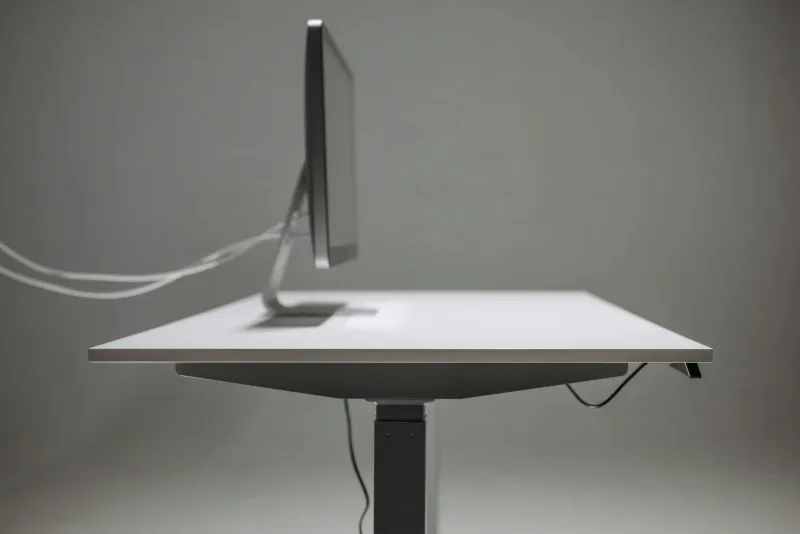
A monitor arm is one of the cheapest ways to make a desk feel bigger and a screen feel healthier. It lifts the display to eye level, frees the space taken by the original stand and lets you move the screen instead of bending your neck to match it.
I do not recommend a monitor arm for everyone. If your monitor already has a good height-adjustable stand and your desk is roomy, it is a nice upgrade rather than a must. If your monitor sits too low or your desk is small, it can change the whole setup.

ErGear Monitor Arm
A practical single-arm choice for most 24-27 inch home office monitors, with VESA support and a low entry price.
Checked: 05/24/2026
Best monitor arms compared
ErGear Monitor Arm
Checked: 05/24/2026
Best value for common 24-27 inch monitors. Simple clamp mount, VESA support and cable routing at a low cost.

BONTEC Monitor Arm
Checked: 05/24/2026
Stronger budget option if your monitor is heavier or closer to 32-34 inches.
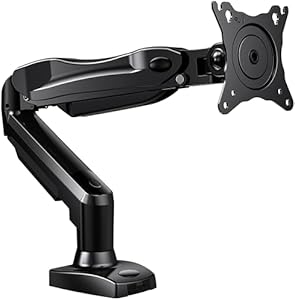
HUANUO Monitor Arm
Checked: 05/24/2026
Spring-based arm that avoids gas-cylinder pressure loss. Good for long-term use with standard monitors.
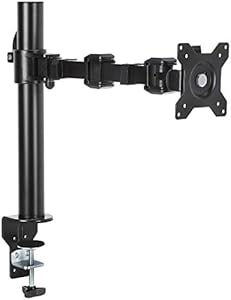
Amazon Basics Monitor Arm
Checked: 05/24/2026
A cleaner, sturdier option if you want a familiar brand and a more solid feel than the cheapest arms.

ErGear Dual Monitor Arm
Checked: 05/24/2026
Two independent arms from one clamp. Best if you use two monitors and want a cleaner desk surface.

Ergotron LX
Checked: 05/24/2026
Premium choice for stability, finish and durability. Worth it for expensive monitors or daily adjustment.
Monitor arm or desktop riser?
A riser is cheaper and simpler. It raises the monitor and may give a little storage below. But it does not solve depth, angle or desk-space problems.
A monitor arm makes sense when:
- The screen is too low.
- The original stand takes too much desk space.
- You need to move the monitor closer or farther.
- You use a standing desk.
- You want cleaner cable routing.
- You use two screens and need better alignment.
Use a riser if the only problem is height and your desk is large enough. Use an arm if you also need adjustment and free surface area.
Detailed analysis
ErGear Monitor Arm: best value for most desks
The ErGear single arm is the practical choice for common 24-27 inch monitors. It is affordable, supports standard VESA mounting and gives enough adjustment for a normal home-office screen.
Best for:
- First monitor arm.
- Standard 24-27 inch monitors.
- Small desks where the original stand wastes space.
- Laptop-plus-monitor setups.
BONTEC Monitor Arm: budget option for heavier screens
The BONTEC is interesting if your monitor is heavier or closer to the upper size range. Weight margin matters because arms near their limit are harder to adjust and more likely to sag.
Use it if you need more confidence than the cheapest single arm gives, but still want to stay budget-conscious.
Check BONTEC monitor arm on Amazon (opens in a new tab)HUANUO Monitor Arm: mechanical spring option
The HUANUO uses a spring-based mechanism rather than relying on a gas cylinder feel. That can be attractive for people worried about long-term sag or pressure loss.
It is a good middle-ground arm for standard monitors and fixed workstations where you want repeatable height without premium pricing.
Check HUANUO monitor arm on Amazon (opens in a new tab)Amazon Basics Monitor Arm: sturdier brand route
The Amazon Basics arm is the safer, cleaner option if you want a more solid feel than the cheapest arms and prefer a familiar brand. It is not the most exciting choice, but monitor arms should not be exciting. They should hold the screen exactly where you leave it.
Best for:
- People who dislike generic arms.
- More permanent desk setups.
- Users who adjust the monitor often.
ErGear Dual Monitor Arm: two screens, one clamp
A dual arm cleans up two-monitor desks, but it also concentrates weight on one clamp point. Check desktop strength carefully.
It is best when both monitors are similar size and weight. Mixed monitor setups can be harder to align.
Check ErGear dual monitor arm on Amazon (opens in a new tab)Ergotron LX: premium reference
The Ergotron LX is the premium choice. It costs more because the adjustment, finish and stability are better. It makes sense for expensive monitors, daily repositioning or people who want to buy one arm and keep it for years.
Check Ergotron LX on Amazon (opens in a new tab)Before you buy
Check three things: VESA mount, monitor weight and desk edge. Glass desks, thick rounded edges and very thin desktops can make clamp mounting risky. If your monitor is an ultrawide, leave plenty of margin between the monitor weight and the arm’s maximum rating.
For posture setup, see correct desk and chair height.
VESA and desk compatibility
Most monitor arms use VESA 75 x 75 or 100 x 100 mm. Check the back of your monitor before buying. Some monitors hide the VESA holes behind a plastic panel; others need an adapter.
Also check:
- Monitor weight without the original stand.
- Desk thickness.
- Desk edge shape.
- Whether there is enough rear clearance.
- Whether a grommet mount is possible.
Avoid clamp arms on glass desks unless the manufacturer explicitly supports it.
There are two common mounting paths: clamp and grommet. Clamp mounting is easier and works for most desks with a strong rear edge. Grommet mounting uses a hole through the desktop and can be cleaner on deeper desks, but it requires a suitable hole and more commitment.
If the desk is rented, shared or likely to move rooms, clamp mounting is usually the practical choice. If the desk is permanent and cable routing is planned, grommet mounting can look cleaner.
Mounting checklist
- Remove the original monitor stand.
- Attach the VESA plate.
- Clamp the arm to a strong desk section.
- Mount the monitor with help if it is heavy.
- Adjust arm tension slowly.
- Set monitor top area near eye level.
- Route cables with enough slack.
- Test sitting and standing positions if using a standing desk.
Which monitor arm should you buy?
- Best value: ErGear Monitor Arm.
- Heavier budget screen: BONTEC.
- Mechanical spring preference: HUANUO.
- Safer brand feel: Amazon Basics.
- Dual monitors: ErGear Dual.
- Premium long-term arm: Ergotron LX.
The right arm is the one that holds your monitor at eye level without drifting. If it sags, shakes or fights adjustment, it stops being ergonomic.
Why a monitor arm changes more than height
Most people buy a monitor arm to raise the screen. The better reason is control. A monitor arm lets you adjust height, depth, angle and desk space together.
That matters because monitor posture is not only vertical. If the screen is too far away, you lean forward. If it is too close, your eyes work harder. If it is off-centre, your neck rotates. If the original stand takes half the desk, the keyboard and notebook get pushed into worse positions.
A good arm solves several small problems at once:
- Screen at eye level.
- More desk surface.
- Easier cleaning.
- Better cable route.
- Monitor can move for calls, writing or reading.
- Laptop stand can sit beside the monitor more cleanly.
Single vs dual arm
A single arm is simpler, cheaper and easier to stabilise. It is the best choice if one monitor is your main screen and the laptop or second display is occasional.
A dual arm is cleaner if you use two monitors every day. But it has trade-offs:
- More weight on one clamp.
- More time spent aligning screens.
- More cable routing.
- More risk of wobble on thin desks.
If the two monitors are different sizes, two separate single arms can sometimes be easier than one dual arm. If the monitors are identical, a dual arm is cleaner.
Monitor arm on a standing desk
Monitor arms work well with standing desks, but the setup needs more care. At standing height, wobble becomes more visible. The arm also raises the centre of gravity of the monitor.
Before using an arm on a standing desk:
- Check desktop thickness.
- Keep monitor weight within the arm rating.
- Tighten the clamp properly.
- Test desk movement at standing height.
- Leave cable slack for full travel.
- Avoid overextending the arm sideways.
If the desk already wobbles, a monitor arm can make that more noticeable.
Ultrawide monitors
Ultrawide monitors need more caution. They may be within the weight rating but still stress the arm because of width and leverage. Leave more margin than you would with a normal 27-inch screen.
For ultrawides, I would avoid the cheapest arms and choose a stronger model with clear support for the size and weight. If the screen is expensive, the arm should not be the weak link.
Also consider how far the arm will be extended. A heavy ultrawide close to the clamp is easier to control than the same monitor pulled far forward or sideways. Leverage matters as much as listed weight.
Common installation mistakes
Mounting too close to a weak desk edge. The clamp needs a solid contact area.
Not adjusting arm tension. If the arm rises or sinks, tension is wrong.
Forgetting cable slack. Cables should move with the arm, not pull against it.
Using an arm for a non-VESA monitor without checking adapters. Not every adapter is stable.
Setting the screen too high. Eye level should land near the upper screen area, not below the bottom edge.
Final buying rule
Buy the cheapest arm that safely supports your actual monitor and desk, not the cheapest arm in general. For normal 24-27 inch monitors, ErGear is enough for many people. For heavier or expensive monitors, step up. For premium screens, Ergotron makes more sense than risking sag.
Detailed compatibility checklist
Before buying, confirm the whole chain:
- Monitor has VESA holes or a reliable adapter.
- Monitor weight without stand is inside the arm range.
- Monitor size is inside the recommended range.
- Desk edge is flat enough for the clamp.
- Desktop is thick and strong enough.
- There is room behind the desk for the arm to move.
- Cables are long enough for the new path.
- The arm does not block shelves, walls or windows.
Most failed monitor-arm purchases come from skipping one of those checks. The arm itself may be fine, but the desk or monitor is not compatible.
Height setup after mounting
Set height after sitting normally, not while standing and guessing. Sit back in the chair, relax shoulders and look straight ahead. Your gaze should land near the upper third of the display.
If the screen is too high, you may lift the chin. If it is too low, you may bend the neck. Both are avoidable with an arm, but only if you set it deliberately.
For dual monitors, centre the primary screen. If you use both equally, centre the gap and angle both screens inward. Do not spend the whole day rotating toward one side.
Cable routing on monitor arms
Monitor arms make cable management easier, but only if you leave movement. Do not zip-tie cables tightly along every joint.
Good routing:
- Cable follows the arm loosely.
- Enough slack remains at each hinge.
- Display cable does not pull when screen moves.
- Power cable reaches without tension.
- Cables drop behind the desk in one route.
If you use a standing desk, test the desk at sitting and standing height after mounting. The monitor arm and desk movement happen together.
Desk types and risk
Solid wood, thick MDF and strong laminate tops usually work well. Thin particle board, hollow-core tops, glass and rounded edges need caution.
If the desk is thin, use a reinforcement plate if the arm includes one or if the manufacturer allows it. The goal is to spread clamp pressure and prevent dents or cracking.
For glass desks, I would avoid clamp arms unless the desk and arm explicitly support that setup. A monitor is too expensive to risk on a questionable clamp point.
If your desk is a budget tabletop on simple legs, inspect the underside before mounting. Some tops look thick but are hollow or weak near the edge. In that situation, a reinforcement plate or a lighter monitor can be the difference between a clean setup and a damaged desk.
When a premium arm is worth it
Premium arms are worth it when:
- The monitor is expensive.
- You adjust the screen several times a day.
- The monitor is large or heavy.
- You use a standing desk.
- You want the arm to last through multiple monitors.
For a basic 24-inch monitor, budget arms are usually fine. For a high-end ultrawide, a premium arm is insurance.
When not to buy one
Do not buy a monitor arm if the original stand already reaches the right height, your desk is deep and stable, and you rarely need to move the screen. In that case, a simple riser or no accessory at all may be the cleaner decision.
Also wait if the desk itself is weak. Fixing monitor height by clamping weight onto a poor tabletop can create a new problem. The desk, monitor and arm have to work as one mechanical system.
Troubleshooting after installation
The monitor sinks. Increase arm tension. If it still sinks, the monitor may be too heavy or the arm too weak.
The monitor rises by itself. Decrease tension gradually.
The screen shakes while typing. Check desk stability, clamp tightness and whether the arm is overextended.
The monitor is crooked. Recheck VESA plate alignment and pivot tension.
Cables pull. Re-route with more slack.
The clamp marks the desk. Loosen, check the contact area and use the manufacturer-approved plate if available. Do not improvise with soft materials that make the clamp less stable.
The screen feels too close. Push the arm back and reassess desk depth. A monitor arm should improve distance control, not bring the display into your face.
Final thought
A monitor arm is a small mechanical upgrade with a large ergonomic effect. It is not glamorous, but it solves height, depth and desk-space problems in one move. Buy carefully, mount patiently and it can outlast several monitors.
Extended FAQ
Do monitor arms damage desks?
They can if the desk is too thin, hollow, glass or weak at the edge. On a solid desk, a correctly mounted arm is usually fine. Use a reinforcement plate if the manufacturer provides one and avoid overtightening cheap particle board.
Is gas spring better than mechanical spring?
Not always. Gas arms are smooth and common, but cheaper ones can lose tension over time. Mechanical spring arms can be durable and predictable. The quality of the arm matters more than the label.
Should I buy one arm for two monitors or two separate arms?
If monitors are identical, one dual arm is clean. If monitors differ in size or weight, two separate arms can be easier to align and distribute weight more safely.
How high should the monitor be?
The upper part of the screen should be around eye level while sitting normally. Do not set it so high that your chin lifts.
Is a monitor arm worth it for a 24-inch screen?
Yes if the stand is low or takes desk space. For a cheap 24-inch screen with a decent stand and plenty of desk space, it is optional.
What about laptop stands?
A laptop stand solves laptop height but not monitor positioning. If you use laptop plus external monitor, use the arm for the main display and place the laptop where it does not force neck rotation.