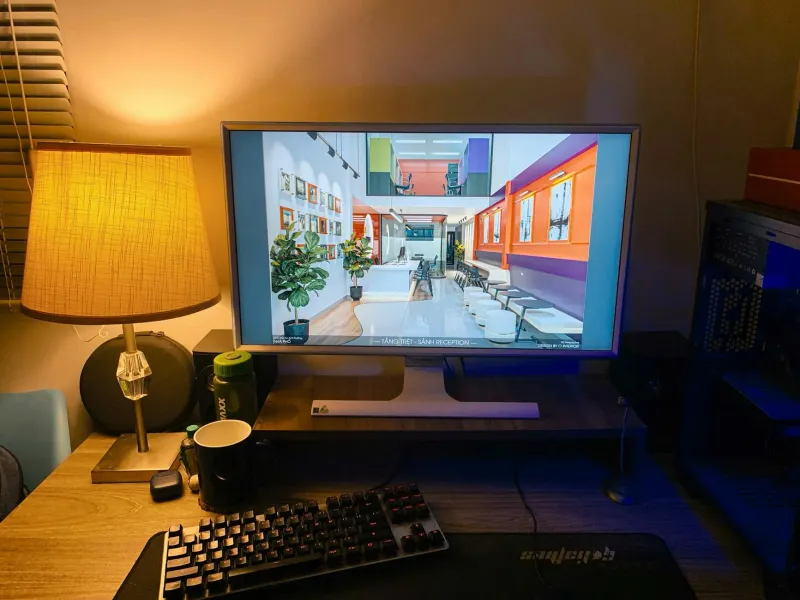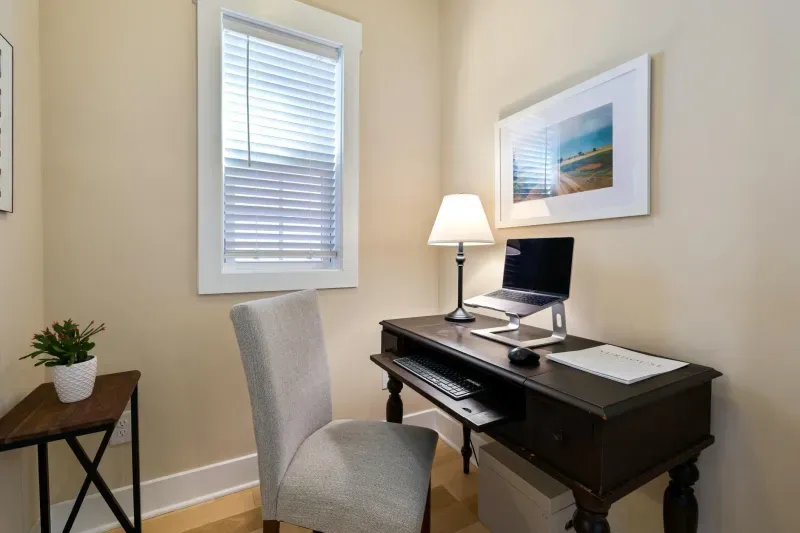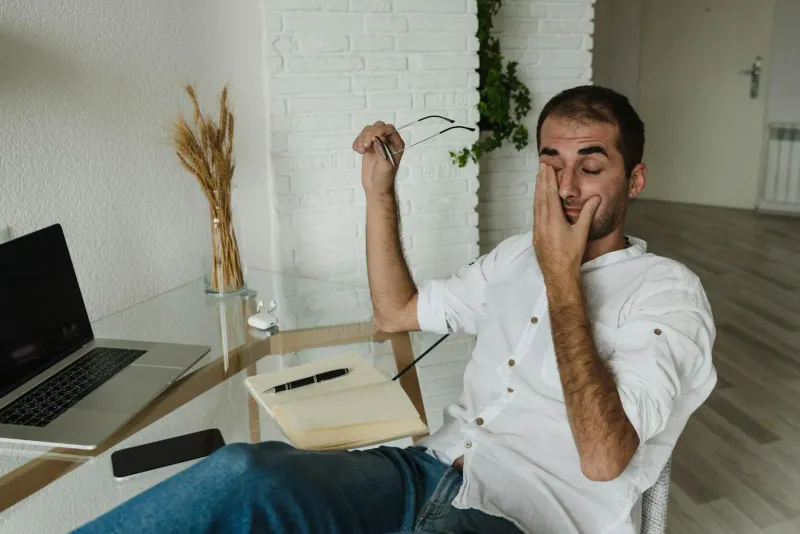
Screen eye strain is not simply “too much screen time”. In a home office, it is usually a combination of fixed-distance focus, reduced blinking, glare, small text and poor lighting. A bright monitor in a dim room can be just as tiring as a screen that is too dim in a bright room.
Remote workers are especially vulnerable because home removes many natural visual breaks. In an office you walk to meeting rooms, look across the room, talk to people at different distances and move between spaces. At home, it is easy to stare at the same monitor from the same distance for three straight hours.
The good news is that most screen eye strain fixes are simple. You do not need to buy everything. Start with lighting, screen position, text size, breaks and blink habits.
Signs your eyes need a setup change
Common symptoms of digital eye strain include:
- Dry or irritated eyes.
- Temporary blurred vision late in the day.
- Frontal headaches or pressure behind the eyes.
- Sensitivity to light after long screen sessions.
- Difficulty refocusing on distant objects.
- Neck and shoulder tension from leaning toward the monitor.
The tricky part is that symptoms arrive gradually. Many people first notice tired eyes in the afternoon, then mild headaches, then a pattern of blurred vision that disappears after rest.
Red eyes at the end of every workday are not simply “normal remote work”. They are a signal that your environment, habits or vision correction needs attention.
Why screen work strains the eyes
When you focus on a screen, your eyes hold a fixed focal distance for long periods. The muscles involved in focusing do not get much variation. On top of that, people blink less during screen work, which contributes to dryness and irritation.
The screen itself is not the only issue. The surrounding room matters.
Eye strain gets worse when:
- The monitor is the brightest object in a dark room.
- A window or lamp reflects on the screen.
- Text is too small and you lean forward.
- The screen is too close or too far.
- The laptop screen sits too low.
- You work for hours without looking away.
This is why changing a monitor setting can help, but rarely solves the whole problem alone.
Why remote workers are more exposed
Remote work can compress the whole day into one visual distance: laptop, monitor, phone, messages, calls, documents and video meetings. Even breaks often become more screen time.
Home offices also tend to have weaker lighting than professional workspaces. A ceiling light in the living room may illuminate the room but not the desk. A window may provide beautiful light in the morning and brutal glare in the afternoon.
Laptop-only work adds another problem. A 13-inch or 14-inch screen encourages small text, downward gaze and forward head posture. Adding an external monitor or raising the laptop with an external keyboard can improve both visual comfort and posture.
For monitor options, see best monitors for working from home.
A simple symptom diary
If eye strain keeps returning, track it for one workweek before buying anything.
Write down:
- Time symptoms begin.
- Whether the room is bright, dim or affected by glare.
- Screen brightness level.
- Whether you worked laptop-only or on a monitor.
- How many calls you had.
- Whether eyes feel dry, blurry or painful.
- Whether symptoms improve after looking outside or leaving the desk.
Patterns appear quickly. Afternoon dryness points to blinking, airflow or long uninterrupted focus. Morning glare may be a window problem. Headaches after video calls may involve screen brightness, face lighting or squinting at small thumbnails.
This short log prevents random purchases. You are trying to identify the trigger, not collect gadgets.
The 20-20-20 rule, applied properly
The 20-20-20 rule is simple: every 20 minutes, look at something far away for about 20 seconds.
It works because it changes focal distance. It also reminds you to blink, relax your face and interrupt the tunnel vision that happens during deep work.
The problem is compliance. Nobody wants a habit that feels like a constant interruption. Make it easier:
- Link it to drinking water.
- Look out of a window after sending an email.
- Use calls as a chance to look away from the notes.
- Set a quiet reminder for one week until the habit forms.
- Blink slowly a few times during each break.
If every 20 minutes feels impossible, start with every 30 to 40 minutes. A habit you keep beats a perfect rule you ignore.
Lighting is often the biggest fix
Good lighting reduces the contrast between screen and room. The goal is not maximum brightness. The goal is balance.
Rules that help:
- Place the desk perpendicular to the window when possible.
- Avoid windows directly behind or in front of the screen.
- Use blinds or curtains to control direct sun.
- Add ambient light before the room becomes dark.
- Use task light for the desk surface, not the screen.
- Avoid working at night with only the monitor on.
If the screen feels like a glowing rectangle floating in a dark room, your eyes are doing unnecessary work. If a lamp or window reflects on the screen, move the light source or change the desk angle.
The full lighting setup is covered in how to improve workspace lighting. For product comparisons, see best LED desk lamps.
Configure your screen in five minutes
Brightness
Match screen brightness to the room. Open a white page, then look at the nearby wall. If the screen feels like a lamp, lower brightness or raise ambient light. If the screen looks dull and hard to read, increase brightness or reduce glare.
Text size
If you lean forward to read, text is too small. Increase scaling before moving your head closer to the screen. On many laptops and 4K monitors, scaling is not a luxury. It is part of the setup.
Distance
Place the screen roughly an arm’s length away, usually around 50 to 70 cm. If the monitor is very large, you may need more distance. If text becomes too small at that distance, adjust scaling.
Height
The top area of the screen should sit around eye level or slightly below. If you work on a laptop, use a stand plus external keyboard and mouse. A laptop directly on the desk forces both eyes and neck downward.
Colour temperature
Night mode or warmer colour temperature can be useful in the evening, especially before sleep. It is not the main solution for daytime eye strain. Do not use it as a substitute for lighting, breaks and correct brightness.
Blue-light glasses: useful or overrated?
Blue-light glasses are widely marketed for computer fatigue, but they are not the first fix I would recommend. For most remote workers, the bigger causes are sustained focus, reduced blinking, glare, text size and bad lighting.
If you already have blue-light glasses and they feel comfortable, there is no problem using them. But do not expect them to solve a dark room, a low laptop, tiny text or a workday with no breaks.
Spend effort in this order:
- Lighting.
- Screen brightness.
- Text size.
- Distance and height.
- Breaks and blinking.
- Eye exam if symptoms persist.
Workflows that are harder on the eyes
Not all screen work has the same visual load.
Higher strain tasks include:
- Reading dense text for hours.
- Coding with small fonts.
- Spreadsheet work.
- Design or editing work with high contrast.
- Video calls with many small faces.
- Switching constantly between laptop and phone.
For those tasks, the details matter more. Increase text size before you feel strain. Use a larger monitor if laptop text is cramped. Keep reference documents on the main screen instead of twisting between devices. Do not wait until eyes are already irritated to take a visual break.
Dry eyes and blinking
Screen work reduces blink rate. Dryness then creates irritation, burning and the feeling of sand in the eyes.
Simple habits help:
- Blink deliberately during visual breaks.
- Close your eyes for two or three seconds between tasks.
- Avoid direct fan or air-conditioning airflow toward your face.
- Keep the screen slightly below eye level so the eyelids cover more of the eye surface.
- Ask a clinician or pharmacist about preservative-free artificial tears if dryness is frequent.
Do not self-treat persistent eye symptoms indefinitely. If dryness, pain or blurred vision keeps returning, get professional advice.
When a better monitor helps
A better monitor can help when it solves a specific problem:
- Larger screen makes text easier to read.
- Sharper resolution improves text clarity.
- Better stand or monitor arm fixes height.
- Matte coating reduces reflections.
- USB-C setup reduces laptop friction.
But a bigger monitor placed too close can become tiring. A 27-inch monitor can be excellent for work, but it still needs correct distance, brightness and scaling.
What to try before buying anything
Use this free reset before spending money:
- Clean the monitor and glasses if you wear them.
- Set screen brightness to match the room.
- Increase text scaling one step.
- Move the screen to arm’s length.
- Remove reflections from windows or lamps.
- Turn on ambient light before the room gets dark.
- Take visual breaks for one full workday.
If symptoms improve, you have confirmed the problem is setup-related. Then any purchase should target the remaining issue: lamp for darkness, monitor arm for height, external monitor for cramped laptop work, or eye exam if symptoms persist.
Quick troubleshooting
My eyes burn after lunch. Check blink rate, airflow and whether the room becomes brighter or darker at that time.
I get headaches late in the day. Check glare, screen brightness, text size and whether you lean forward.
My eyes feel tired in the evening. Add ambient light before dusk. Do not wait until the monitor is the only light source.
I squint during video calls. Check whether the window, ring light or monitor is too bright in your field of view.
My neck hurts too. The screen may be too low or too far. Read neck pain from computer work.
When to see a professional
Book an eye exam if:
- Blurred vision persists after rest.
- Headaches become frequent.
- Eye pain is strong or one-sided.
- Dryness does not improve with basic changes.
- You have not checked your prescription recently.
- Symptoms affect driving, reading or daily life.
Ergonomic fixes are useful, but they do not replace eye care. Sometimes the missing fix is updated vision correction or treatment for dry eye.
Final checklist
- Screen brightness matches the room.
- No window or lamp reflection on the monitor.
- Desk has ambient and task light.
- Text is large enough to read without leaning forward.
- Screen is at arm’s length.
- Laptop is raised if used as the main screen.
- You look away regularly.
- You blink deliberately during breaks.
- Persistent symptoms are checked by a professional.
Screen eye strain is usually a system problem. Fix the room, the screen and the habits together, and the workday becomes much easier on your eyes.